

Google built a video model you talk to.
Not prompt once and pray.
Talk to. As in, make it, look at it, say “make the light warmer,” and watch it change.
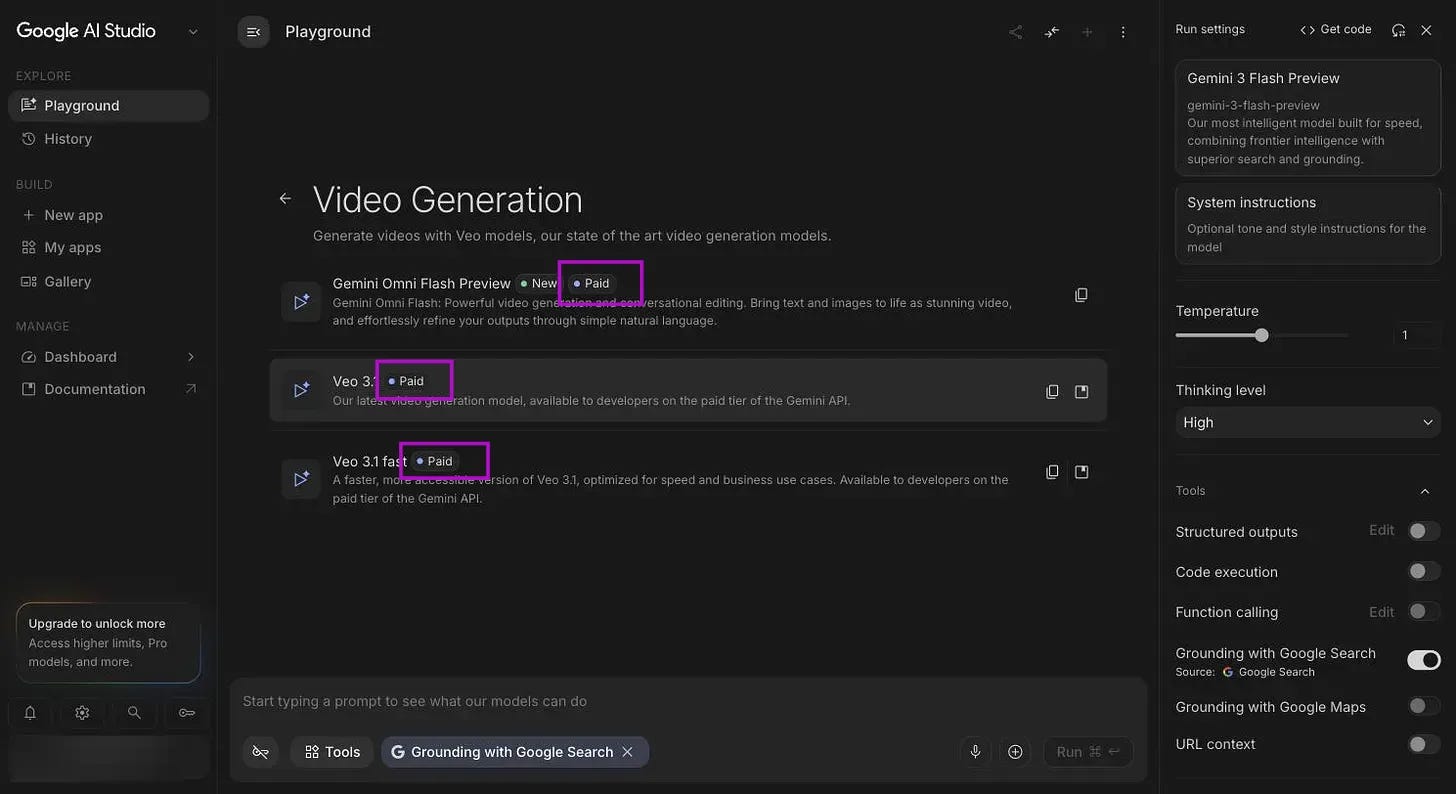
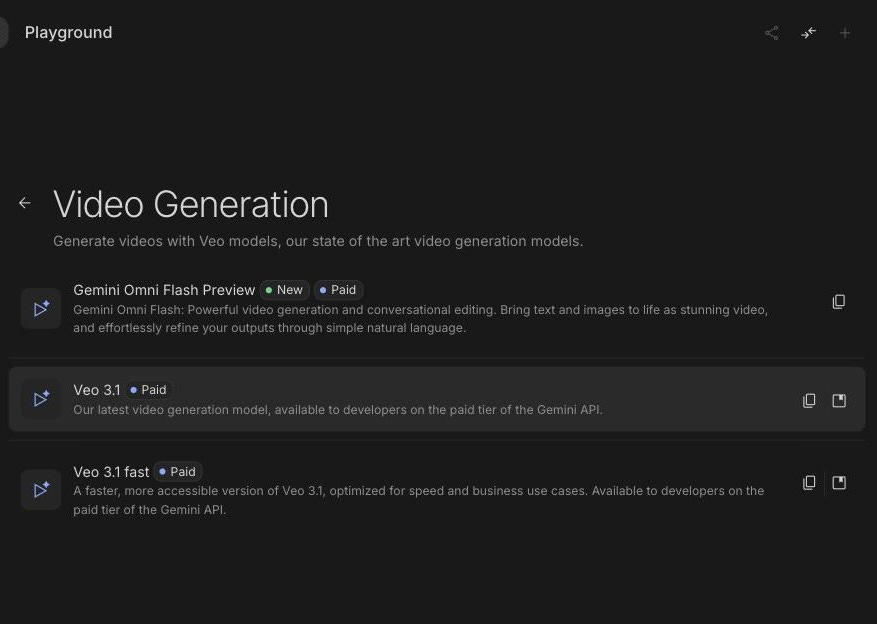
It is called Gemini Omni Flash, and inside Google AI Studio it costs money.
But there is a door where it is completely free, and almost nobody has noticed it yet.
I tested this on a free YouTube account with no Premium and nothing special on it.
New here? Subscribe so the next build lands in your inbox. It is free.
Today I am going to walk you through that door, and you are going to leave with a real video of your app.
It goes like this:
I show you the paid door first, so you know what you are skipping (and what it would have cost)
We find the free door, which is not where anyone expects it
You make your first clip by typing one sentence
You talk to it and fix the bits you do not like
You get the file out so you can use it anywhere
I will show you every step, with screenshots.
But first, here is the thing that made me sit up.


Two things before we start:
Save this, then give yourself fifteen minutes tonight and make one clip. Just one.
Send it to a founder who keeps saying they need to “get a video made.”
Sharing is free, and it is how this newsletter grows.
Why I bothered chasing this down.
I ship products for a living.
(They all end up at prompts2products.com eventually, if you would rather see the things than read about them.)
And the gap I watch people fall into, over and over, is not building the thing.
It is that they build the thing, and then they have nothing to show anyone.
No demo.
No clip.
Just a link and a hope.
So they screen record something at eleven at night, it comes out shaky and forty seconds long, and it never gets posted.
I have done exactly this. More than once.
When Google launched Omni Flash at the end of June, I assumed it was another thing I would need to pay for before I could form an opinion.
Then I actually went looking, and found that the free version is sitting inside an app that two billion people already have on their phone.
(I am not going to pretend I found this out of pure genius. I found it because I was annoyed about a paid badge and kept clicking.)
1. First, let’s be honest about what free actually means.
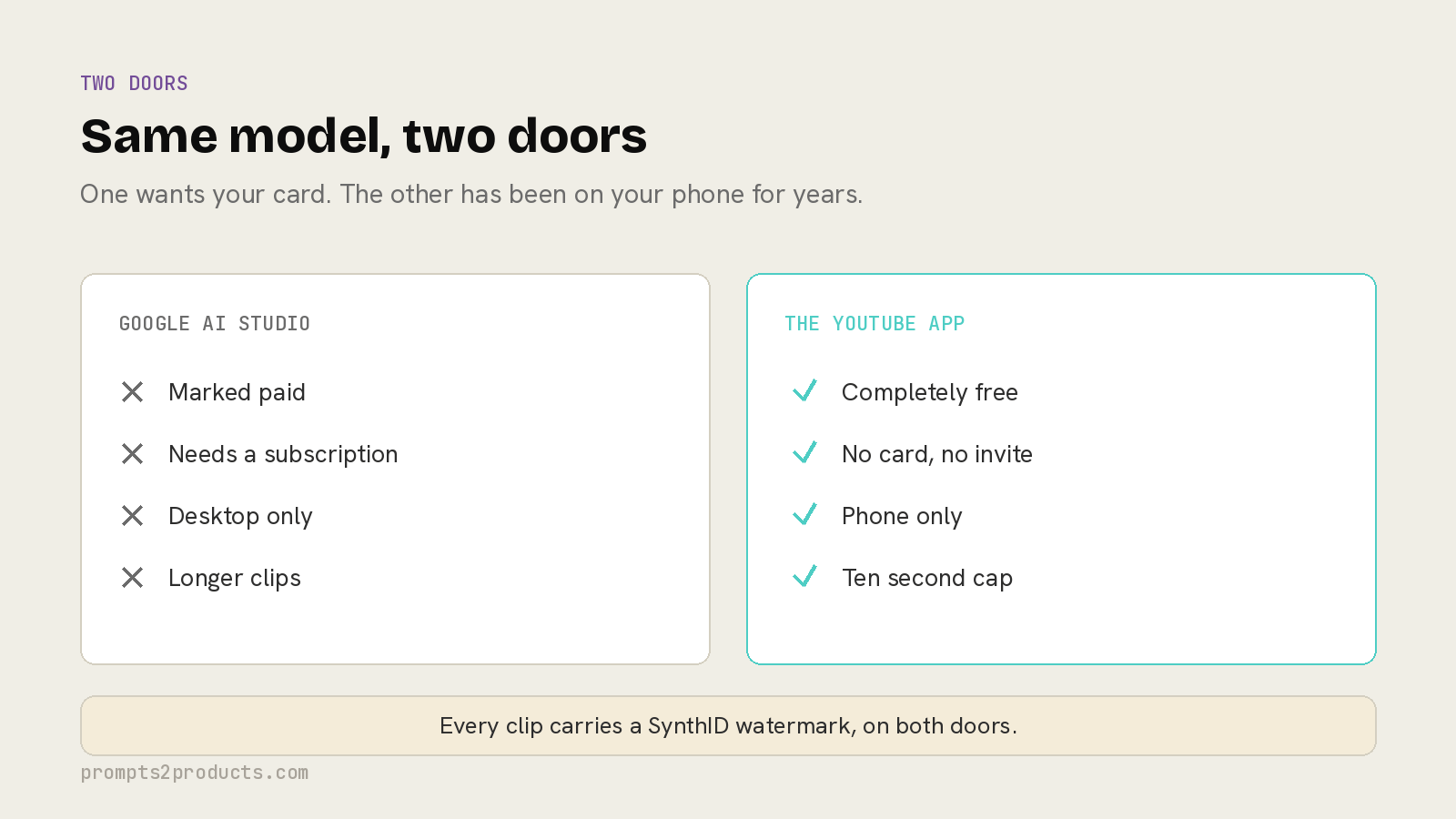
I am not going to sell you a free lunch and hide the bill in the small print.
Here is exactly what you get and exactly what you give up, in plain words.
What you get. The real Omni Flash model. Text to video. Image to video. Conversational editing, which means you can ask for changes in normal English instead of starting over. Sound generated with the picture.
What it costs. Nothing. No subscription. No invite list. No card.
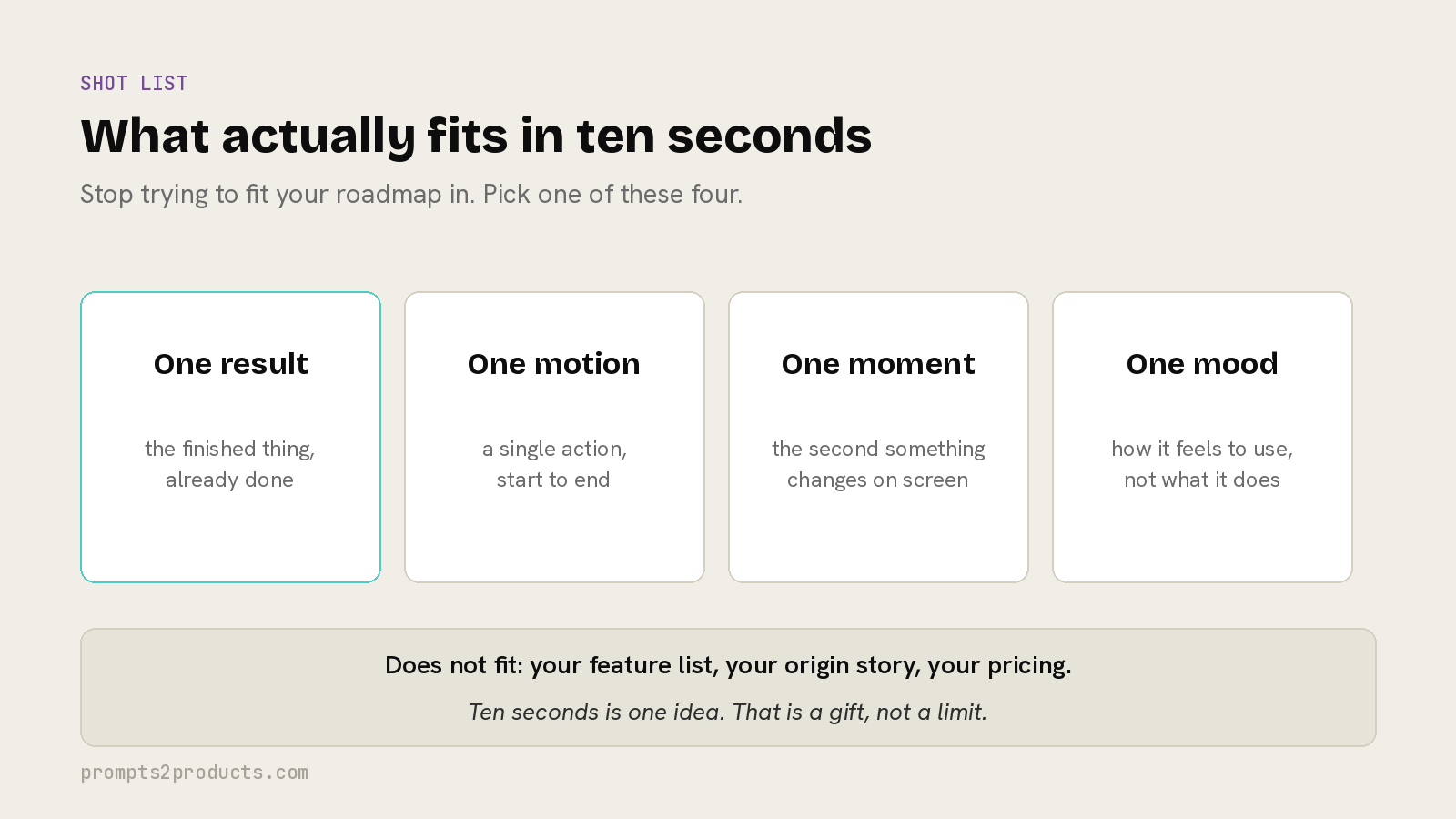
Limit one, ten seconds. Clips are capped at ten seconds at launch. That is short. It is also, annoyingly, the exact right length for a product demo that people actually watch.
Limit two, no audio editing. In the free YouTube route you cannot go back and change the sound afterwards. You get what it gives you.
Limit three, the watermark. Every clip carries something called SynthID, which marks it as AI generated. It is largely invisible to the eye but it is detectable, and it is not removable.
That last one matters and I want to be straight about it.
If you are making a demo clip of your own product, a watermark is completely fine.
If you were planning to pass AI video off as real footage of real people, this is not your tool, and honestly, I am glad.
2. Now let’s make your first clip.
Right. Phone in hand.
I am going to assume you have never opened a video tool in your life, because most of the people I teach have not.
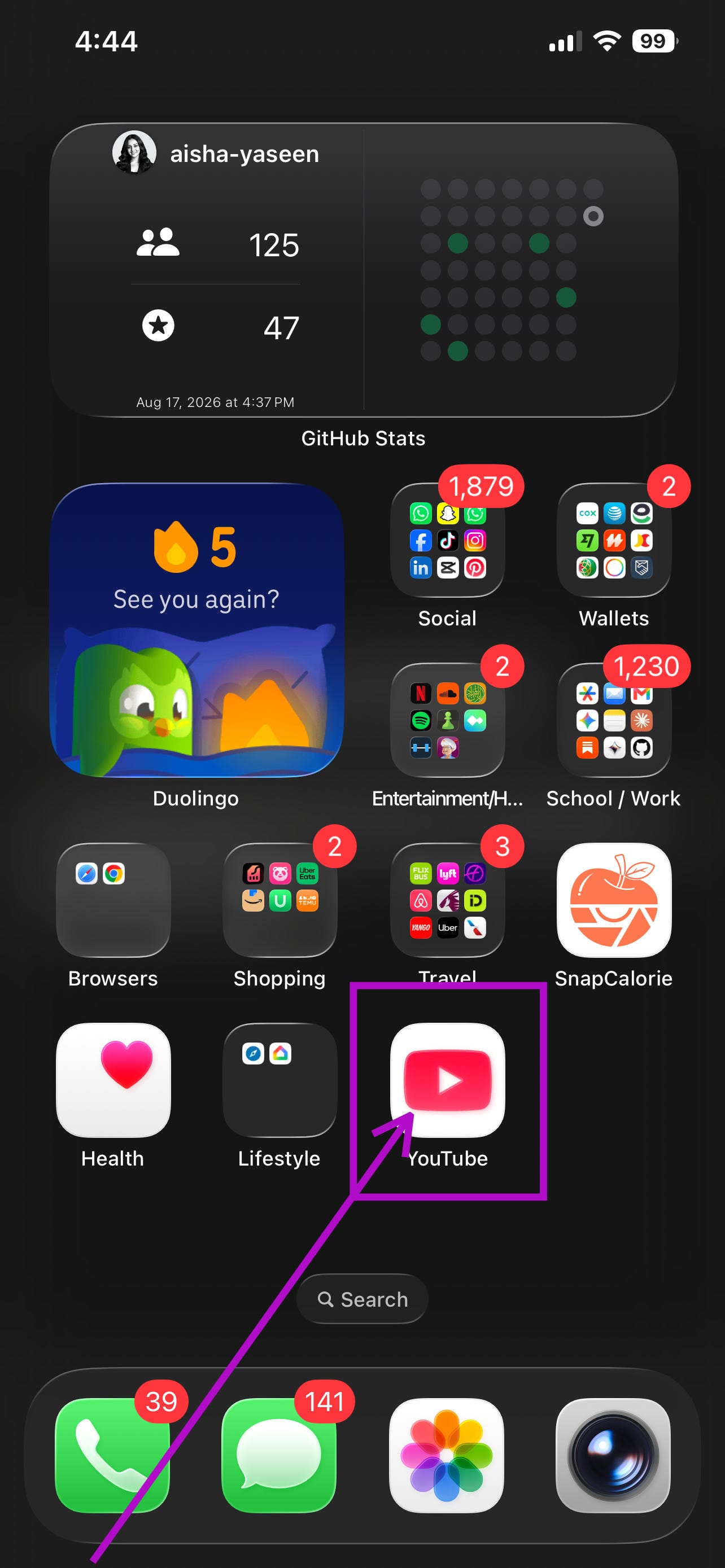
Step 1: Open the YouTube app on your phone. Not the browser. The actual app.
Step 2: Look at the bottom of the screen. See the + in the middle of the row? Tap it.
Step 3: A menu slides up from the bottom. Tap Create a Short.
Step 4: You are now on the recording screen. Do not record anything. Look at the row of tools instead, and find the AI video option.
(Google is still moving these buttons around, so if it is not where I say, look for anything with a sparkle icon. That is always the AI one. It is a universal law at this point.)
Step 5: Tap it. A text box appears asking what you want to see.
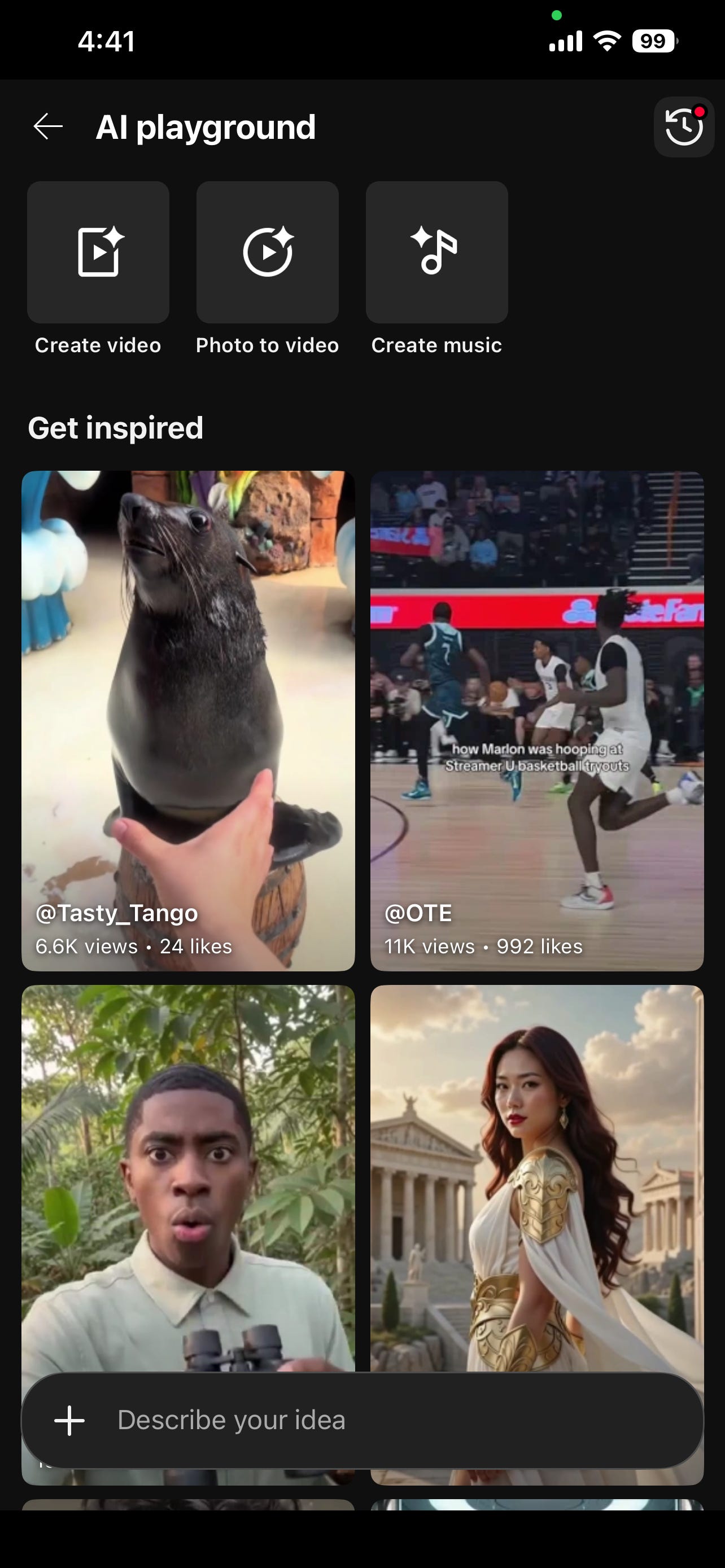
Step 6: Now type what you want. And here is where most people go wrong, so read this bit twice.
Do not write “a video about my app.”
That is not a description. That is a category.
Write what the camera can literally see.
Here is the shape that works:
[what is on screen] + [how the camera moves] + [what the light is like] + [the mood]
So instead of “a video about my task app,” you write:
“A close shot of a phone on a wooden desk, morning light, a to do list app open on the screen with items ticking off one by one, the camera slowly pushes in.”
Same idea. Wildly different result.
Step 7: Tap generate, and wait. It takes a moment. Do not tap it four more times (I did, and got four videos, and deserved it).
3. The bit that makes this different: talk to it.
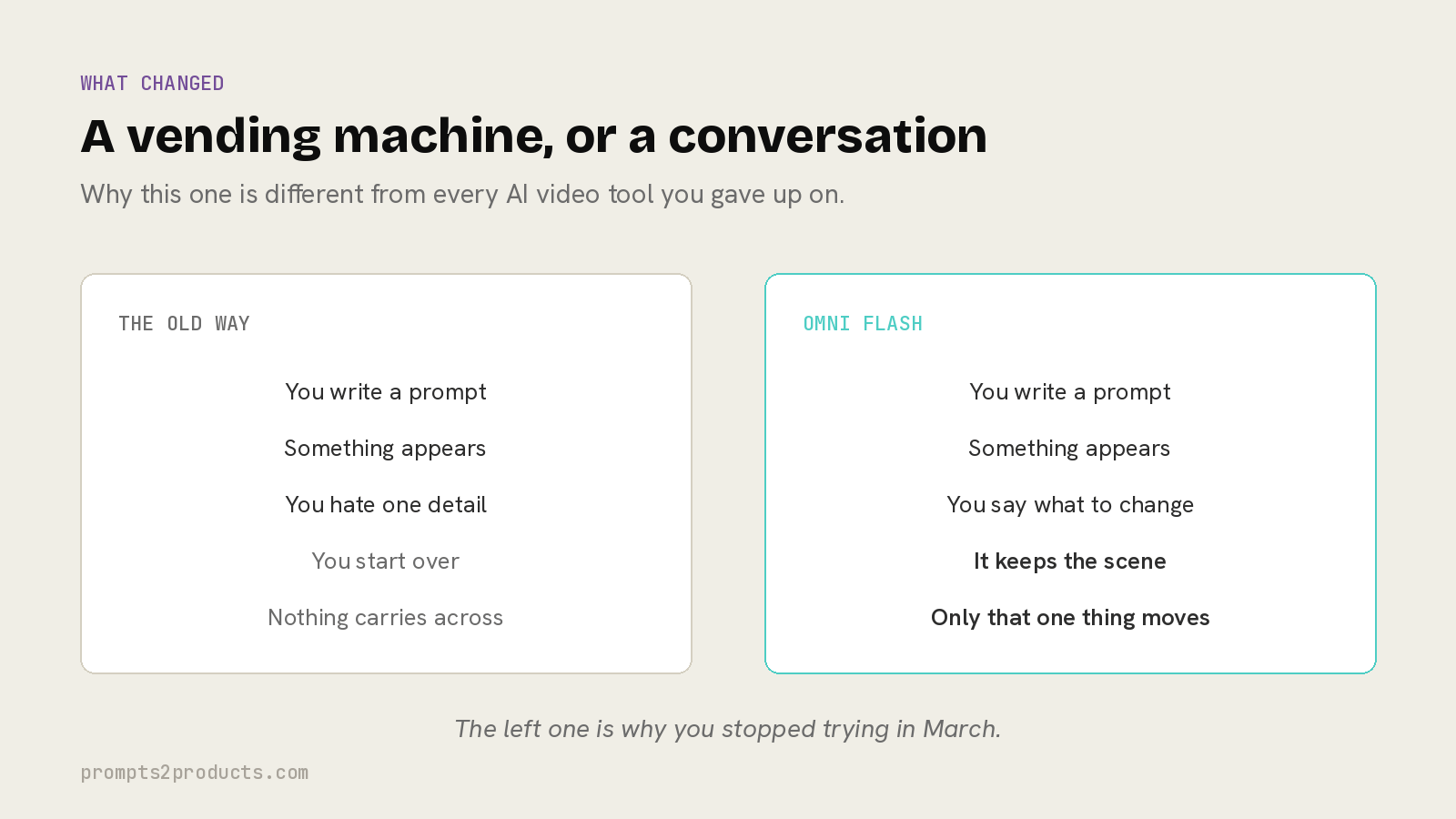
Every other video tool works like a vending machine.
You put a prompt in, something falls out, and if you do not like it you start again from nothing.
Omni Flash does not work like that, and this is the actual news.
You look at what it made, and you tell it what to change.
Step 1: Look at your clip properly. Find the one thing that bothers you most. Just one.
Step 2: Say it, in normal words, the way you would say it to a person.
Things that work:
“Make the lighting warmer.”
“Slow the camera down.”
“Same shot, but at night.”
“Keep everything, just change the desk to a kitchen counter.”
Step 3: Send it, and watch what happens.
The important part is what it does not do.
It does not throw your clip away and roll the dice again.
It keeps the scene, keeps the light, keeps the look, and changes the one thing you asked for.
(This is the difference between a slot machine and an assistant, and it is the reason this model matters more than the last five that launched.)
Step 4: Do it again. And again. Stack the changes up until it is what you pictured.
If this is the first time AI video has felt useful rather than impressive, send it to one person who felt the same way.
4. Four descriptions that work, and why.
I have made a lot of bad clips this month so that you can skip that part.
Here are four descriptions that reliably produce something usable, with the reason each one works underneath it.
Steal the shape, swap in your own product.
The over the shoulder.
“Over the shoulder view of someone at a laptop in a bright kitchen, a simple app open on the screen, they click once and the screen updates, camera stays still.”
This works because a person is in it. Not a face, just a shoulder and a hand, which is enough for a brain to identify with and not enough to look uncanny.
The desk push in.
“A phone lying on a dark desk beside a coffee cup, screen glowing, an app open showing a list, the camera slowly pushes in towards the screen, warm evening light from the left.”
This works because slow forward motion reads as important. It is the oldest trick in film and it still works on a ten second clip.
The before and after.
“A cluttered desk covered in sticky notes and paper, the camera pans right to reveal a clean desk with a single phone on it, soft daylight, calm mood.”
This works because it tells a whole story with no words at all. Your product is the thing that happened between the two halves.
The abstract.
“Close macro shot of soft violet and cream shapes flowing and reassembling into a neat grid, pale background, gentle movement, no text.”
This works when your product is genuinely hard to show. It buys you attention without pretending to be a demo.
(Notice that not one of these mentions AI, software, technology, or the future. Describe a room, not a concept. The model is very good at rooms and very bad at concepts.)
5. Getting the clip out so you can actually use it.
A video trapped inside YouTube’s creation screen is not much use to you.
You want the file, so you can put it on your landing page, or in an email, or on the other five platforms.
(No landing page yet? That is Sunday’s article, and the older step by step guides live at prompts2products.com.)
Step 1: Before you post anything, look for the download or save option on the finished clip. Save it to your phone.
Step 2: Check your phone’s photo library. It should be sitting there as a normal video file.
Step 3: Send it to yourself. Email, cloud drive, whatever you use. Now it exists somewhere that is not one app.
Step 4: Only now, if you want to, post it as a Short.
That order matters. Save first, post second.
(I have lost a clip I liked by posting it and assuming it saved. It did not. I was very calm about it and definitely did not say anything out loud.)
Where this falls short (being honest).
I would rather you hear the limits from me than find them at eleven at night.
Ten seconds is ten seconds. You are not making a two minute explainer here. You are making one moment. Plan for that and it is a strength, fight it and you will be miserable.
It does not know your product. It has never seen your app. It is making something that looks like your app’s world, not a recording of your actual screens. For real screens, you still record your real screens.
The free route is a phone route. This lives in the YouTube app. If you were hoping to do it all from your laptop, that is the paid door.
Watermarked, always. SynthID goes on everything and does not come off. For product demos this is a non issue. For anything pretending to be real, it should be a full stop.
Google will move the buttons.
They always do.
If a tap in this article does not match your screen, look for the sparkle icon and you will find it.
The free door might close.
I want to be straight with you about this rather than pretend otherwise.
Free access inside YouTube is a decision Google made to get this model in front of a lot of people quickly, and decisions like that get revisited.
It is free today, which is why I am telling you today rather than saving it for a nicer week.
Go and make something with it while the door is open.
Nobody sent me a free account for this.
Google does not know I exist.
I chased this down because I was irritated by a blue Paid badge, and I thought you might be irritated by it too.
There is a version of this newsletter where I only write about the paid tools, because the paid tools are easier to write about and nobody argues with you.
I would rather write the version where I go and check whether you actually need to pay, and then tell you when you do not.
That is most of what I think this job is.
If it saved you from paying for a video tool this month, that is the whole job done.
The nicest thing you can do costs nothing: send this to one person who has been putting off making a demo.
And if someone forwarded this to you, go and thank them, then subscribe so the next one turns up on its own.
Save this. The five things that matter.
Omni Flash is Paid in Google AI Studio and free in the YouTube app. Same model.
Free route: YouTube app, tap +, Create a Short, find the sparkle icon.
Describe a picture, not a topic. What is on screen, how the camera moves, what the light is like.
Then talk to it. “Warmer.” “Slower.” “At night.” It keeps the scene and changes one thing.
Save the file to your phone BEFORE you post it. Learn from my bad evening.
PS: on Thursday I am taking the one clip you just made and turning it into a whole week of posts, without making anything new. Bring the clip.